Setting up Hyperglance has always been supported by guidance, but the old process worked more like a checklist.
You could see what needed to be done, but you still had to move between different areas of the product to complete each step.
This week, as part of our Hyperglance v10 release, we’re rolling out a redesigned onboarding experience that changes that.
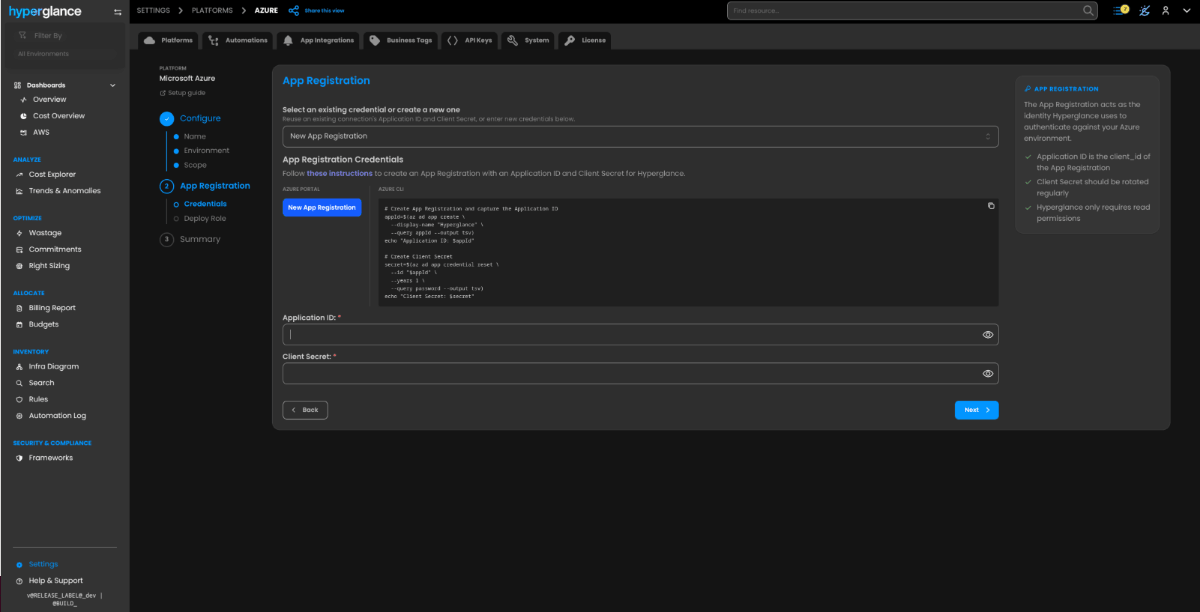
Instead of giving you a list of things to work through, Hyperglance now guides you through setup step by step.
A Proper Guided Setup
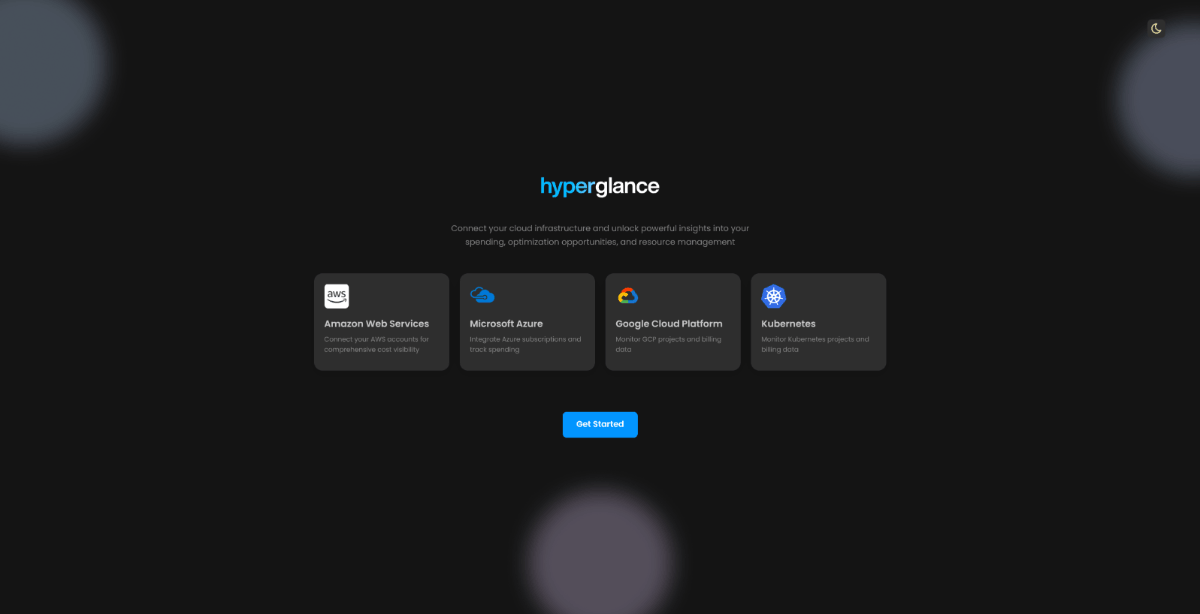
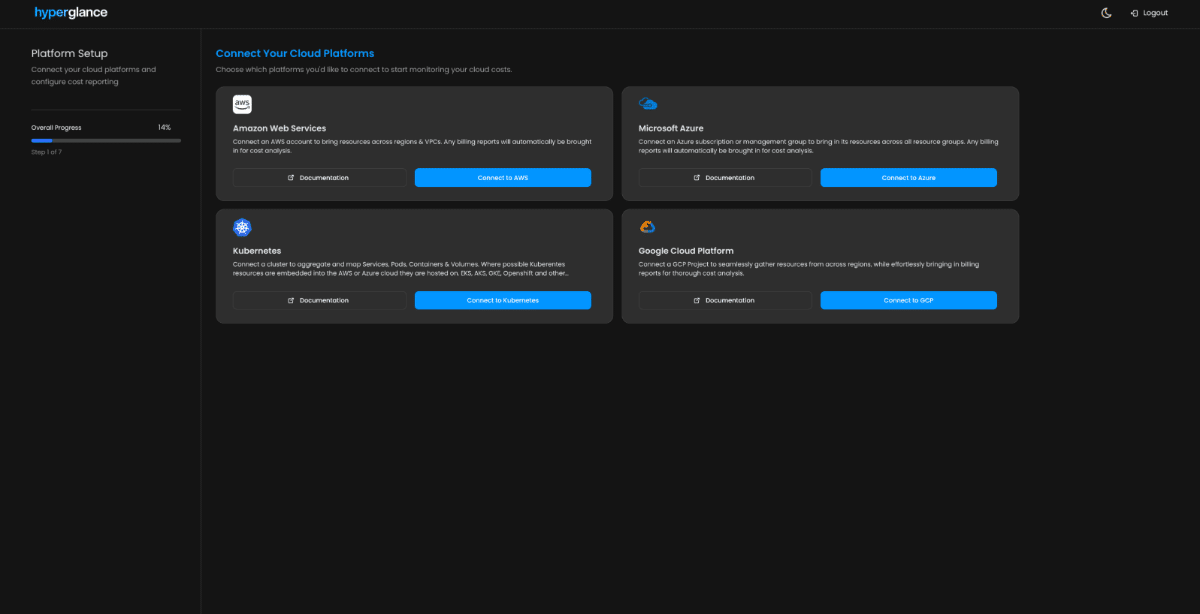
The new onboarding wizard starts by asking which cloud platforms you want to connect, including AWS, Azure, Google Cloud, and Kubernetes.
From there, Hyperglance takes you through the required steps in order.
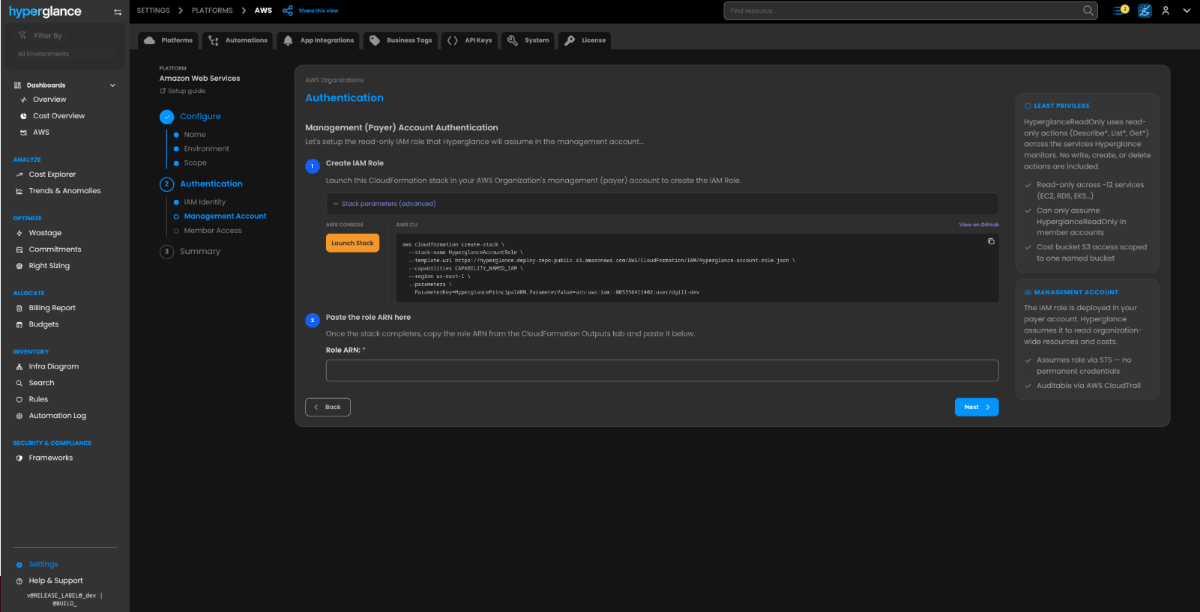
For AWS and Azure, that includes the authentication and IAM resources needed to connect your environment. New CloudFormation and ARM templates can now be launched directly from the wizard, so there’s less switching between Hyperglance, documentation, and your cloud console.
The difference is simple.
Before, Hyperglance told you what needed doing.
Now, it takes you through it.
That means less jumping around the product, less uncertainty about what comes next, and a clearer route from first login to connected cloud data.
A Redesigned Platforms Page
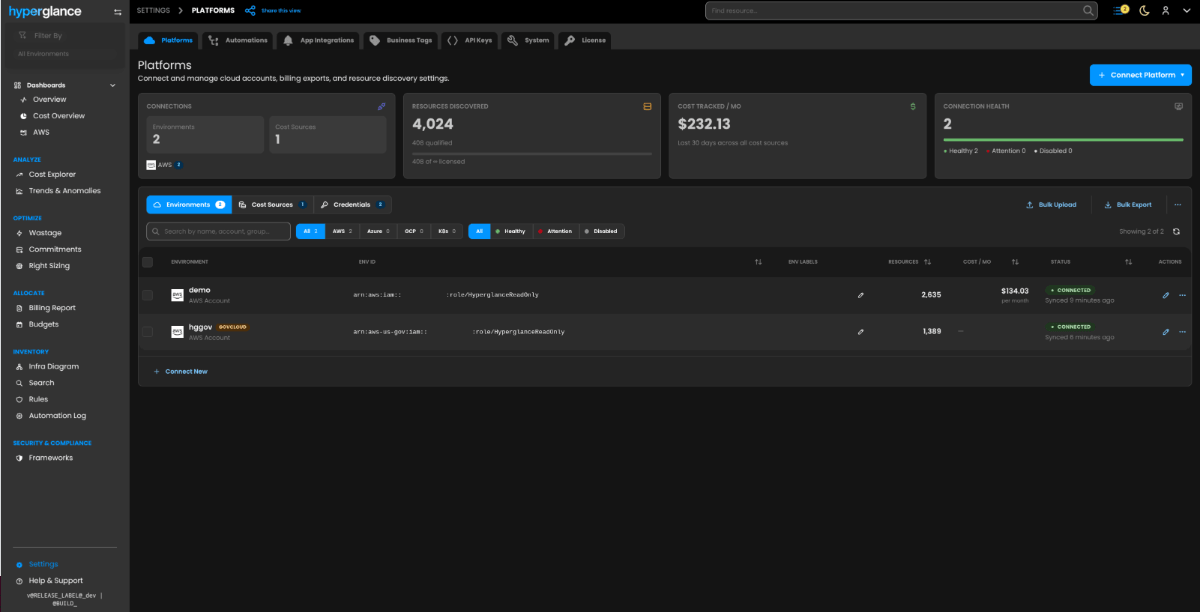
We’ve also rebuilt the Platforms area around 3 clearer concepts:
- Environments for the cloud accounts, subscriptions, projects, and clusters you connect
- Cost Sources for the billing data Hyperglance analyzes
- Credentials for the authentication details used by those connections
This makes it easier to see how your cloud environments and cost data are connected, rather than treating setup as a collection of separate settings.
The page also gives you a clearer view of connection health, resources discovered, and the cloud cost being tracked.
Easier Connection Management
The changes aren’t limited to first-time setup.
You can now edit connection and credential fields directly, making it easier to maintain existing integrations when something changes.
Bulk credential export has also been updated to support passphrase-encrypted secrets, giving administrators a safer way to export credential data when required.
Cloud Cost Sources Are Clearer Too
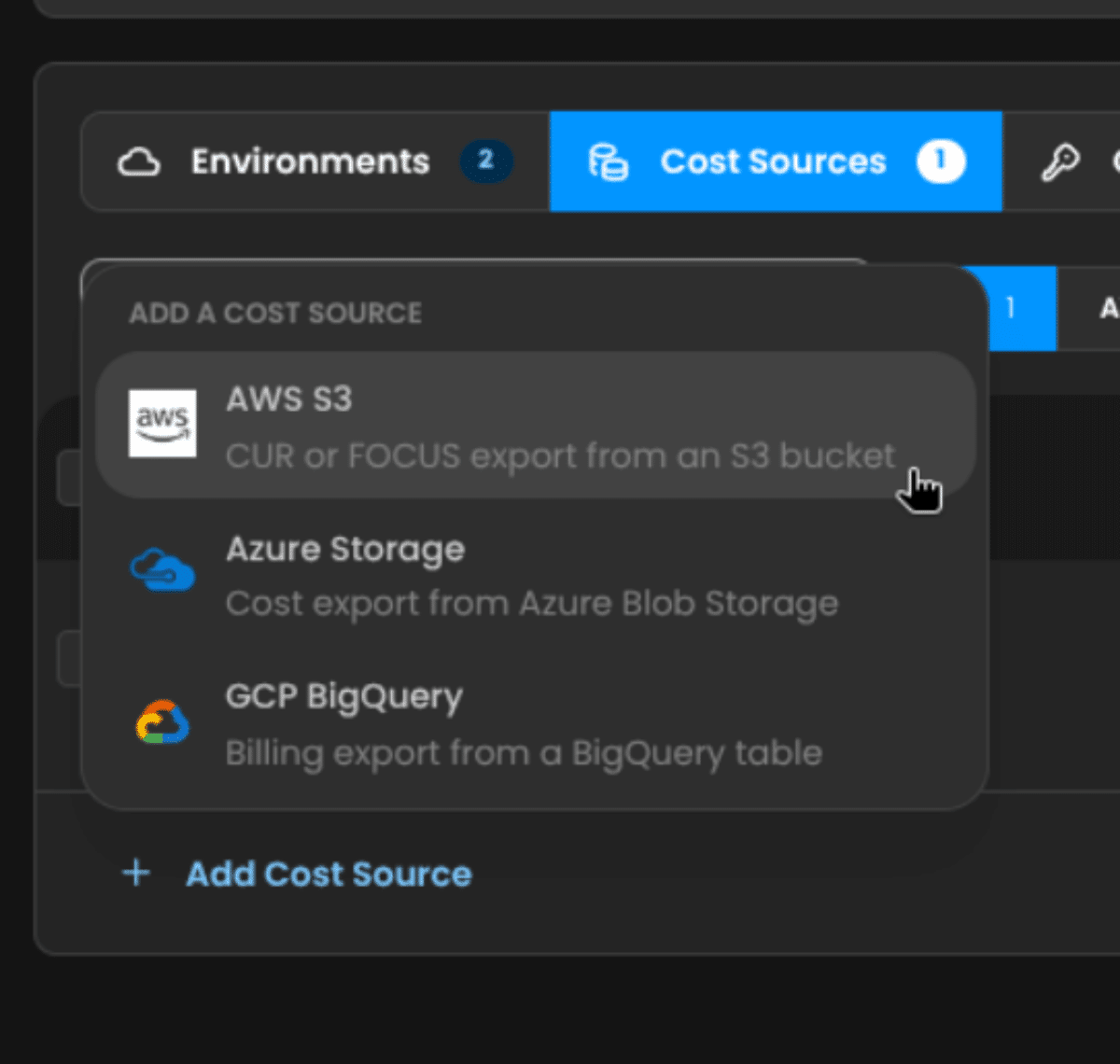
Cost sources now sit alongside environments and credentials as a distinct part of the setup model.
Depending on your cloud platform, that can include:
- AWS CUR or FOCUS exports from S3
- Azure cost exports from Blob Storage
- GCP billing exports from BigQuery
Keeping these separate from resource connections makes it easier to understand exactly where Hyperglance is getting its infrastructure and billing data.
Light Or Dark? Your Call
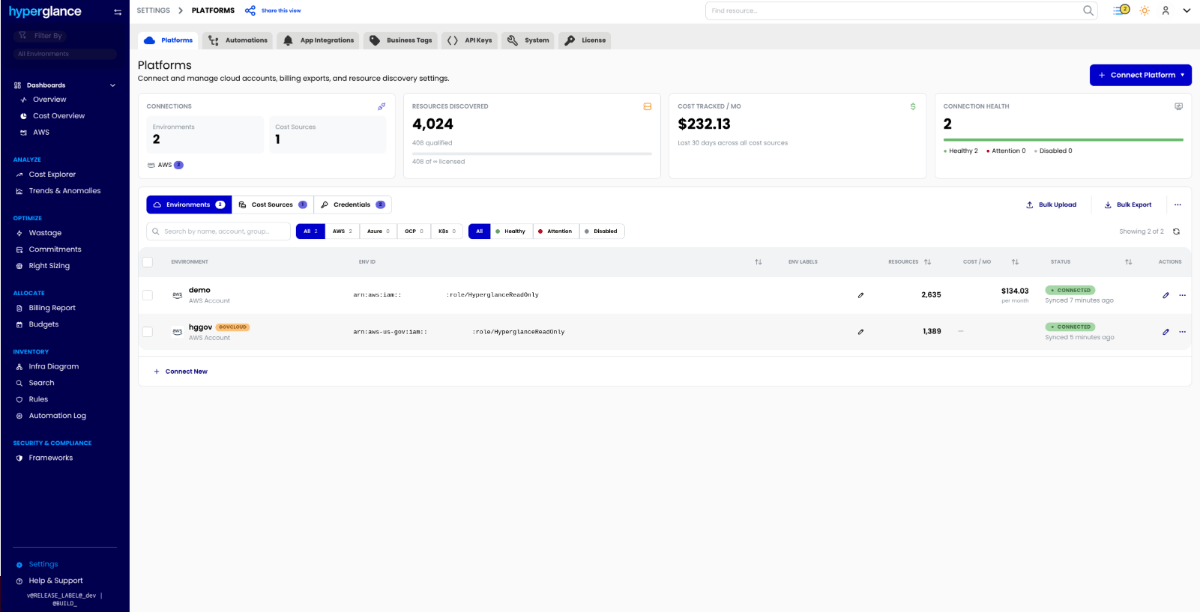
The new onboarding experience and Platforms area also support both light and dark modes.
Not the biggest cloud management problem you’ll solve this week, admittedly. But if you spend a lot of time in cloud tooling, it’s nice to have the choice.
Available This Week
The redesigned setup experience is rolling out this week.
New deployments will be guided through the onboarding flow from the beginning, while existing users will get the redesigned Platforms area and updated connection management.
It’s a fairly substantial change to the first-run experience, but the goal is straightforward: make it easier to get Hyperglance connected, understand how those connections are configured, and manage them later.
Schedule an Overview
Want to see more? Book a quick call with our team to get a personal walkthrough of the new release and explore how it can help you stay on top of your cloud costs. Use the scheduler below to pick a time that works for you.
Why Teams Choose Hyperglance in 2026
Hyperglance is a strong fit when cost data alone doesn’t give your team enough context.
That often happens when teams are asking questions like:
- What is running across our cloud estate?
- Who owns this resource?
- Why did this cost change?
- What else depends on it?
- Is it safe to clean up?
- Which policy, security, or compliance issue needs attention?
- Can we route this to the right owner or trigger an approved action?
We help teams connect cloud cost to infrastructure context across AWS, Azure, Google Cloud, and Kubernetes. That means FinOps, CloudOps, platform, security, and leadership teams can work from the same view.
Hyperglance is especially useful for mid-market, enterprise, MSP, public sector, and regulated teams where ownership, governance, automation, and data control matter.
What You Can Do With Hyperglance
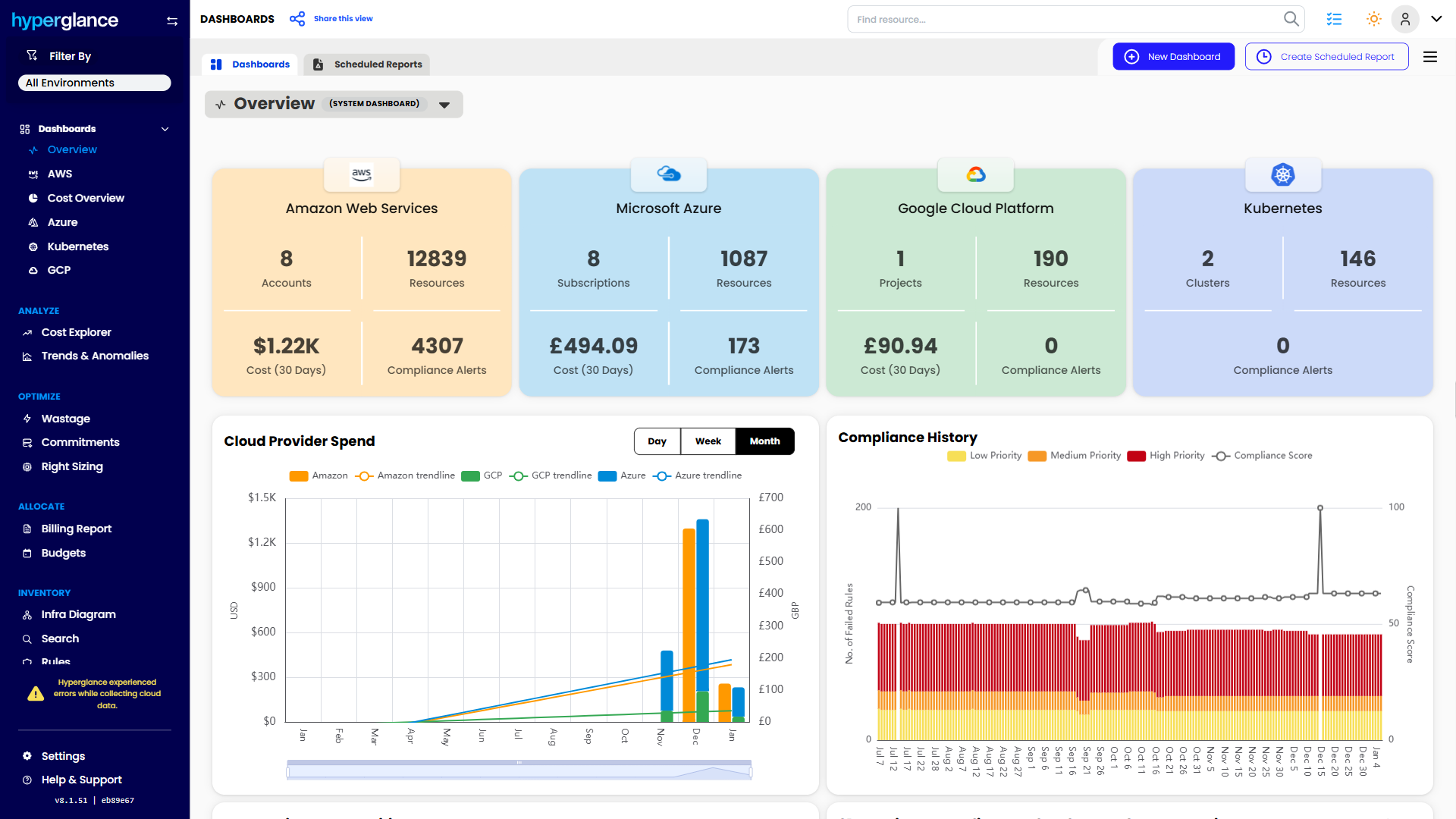
- See cost, resources, relationships, and ownership in one place
- Visualize cloud architecture with interactive diagrams
- Find waste, policy issues, and cost anomalies faster
- Route findings to the right team through existing workflows
- Use no-code automation for approved fixes
- Run Hyperglance in your own environment when data control matters
Want to see where Hyperglance fits in your FinOps stack?
Explore the product, start a free trial, or book a demo with the team.
About The Author: Stephen Lucas
As Hyperglance's Chief Product Officer (CPO), Stephen is responsible for the Hyperglance product roadmap. Stephen has over 20 years of experience in product management, project management, and cloud strategy across various industries.