🆕 This guide shows how to safely stop or terminate idle EC2 instances without affecting your workloads.
Idle EC2 instances are among the easiest AWS cost optimizations to miss, and among the easiest to fix.
In most AWS environments, EC2 instances are still running long after the work they were created for has ended. They aren’t serving traffic, supporting pipelines, or backing active applications. They’re just on.
If you don’t deliberately look for them, you keep paying for computing that delivers no value.
This walkthrough shows how to identify idle EC2 instances, verify that they’re safe to shut down, and stop or terminate them using Hyperglance, with a brief comparison to doing it manually in AWS.
Why Idle EC2 Instances Deserve Your Attention
An idle EC2 instance is running but not doing meaningful work. In AWS, this is typically indicated by consistently low CPU utilization and minimal network activity over time. OS-level memory and disk space usage are not available by default unless you install the CloudWatch Agent.
In practice, idle instances often come from:
- Test servers left running after releases
- Old staging environments are no longer connected to anything
- Proofs of concept that became permanent
- Dev environments are used infrequently
Because EC2 charges are hourly, these instances add up quickly, especially across multiple accounts and teams. Cleaning them up is one of the fastest ways to reduce EC2 spend without architectural changes.
The Quick Fix: AWS EC2 Cost Optimization Starts with Idle Cleanup
Idle EC2 Instances are the fastest path to real AWS EC2 Cost Optimization, as they don’t require refactoring or redesign. You identify waste and stop paying for it.
Stopping idle instances can deliver immediate savings, particularly in non-production environments where resources are often left running by default.
💥 Ready to go beyond idle cleanup? Dive into our complete guide to AWS EC2 cost optimization.
Walking Through The Fix In Hyperglance
Hyperglance provides a structured way to find and remediate idle EC2 instances without relying on ad hoc scripts or one-off checks.
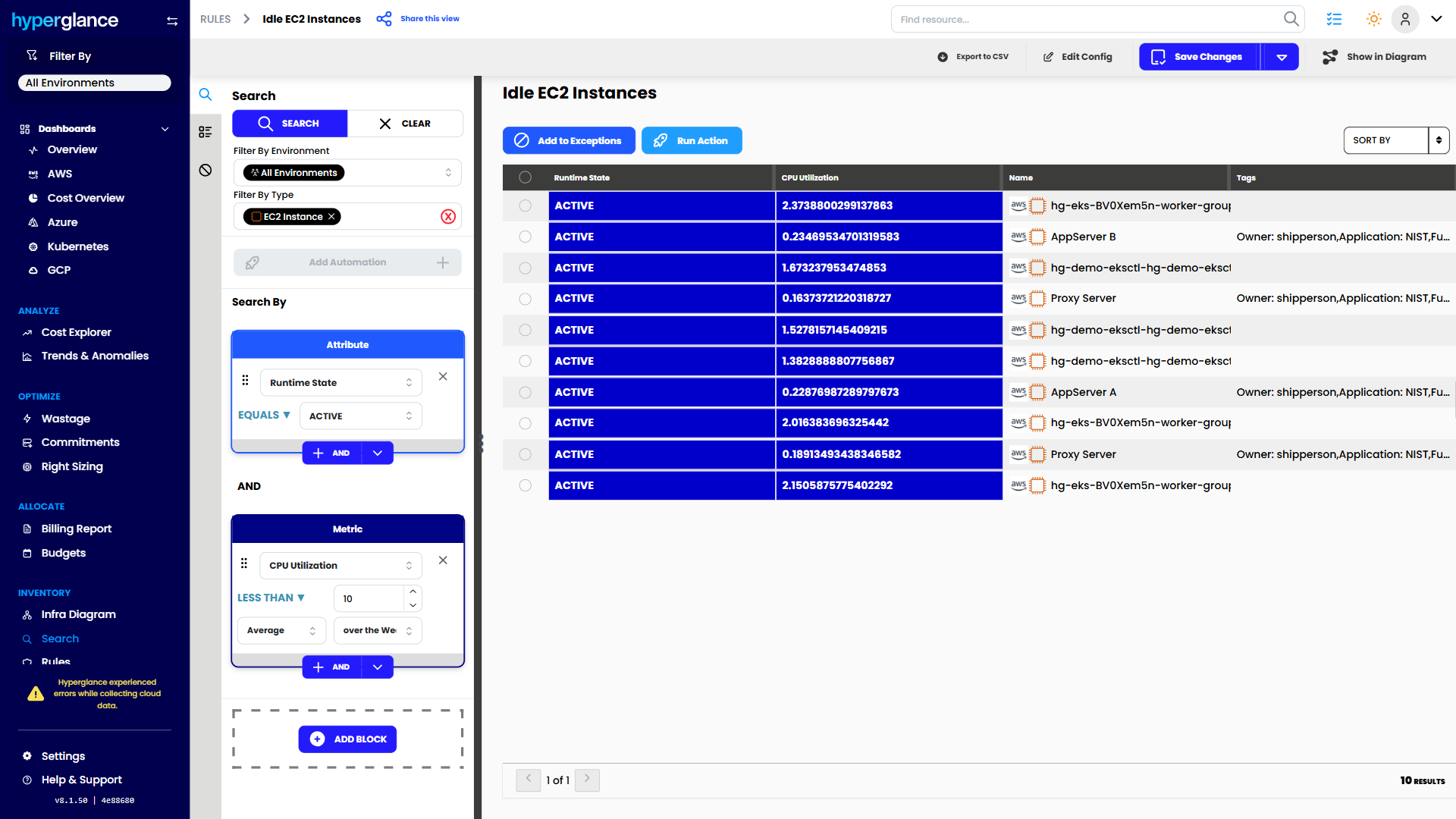
Detect: Find What’s Truly Idle
To identify Idle EC2 Instances in AWS style, you need data, not guesses. Hyperglance flags idleness using behavior trends, not single data points. It considers:
- CPU utilization
- Network traffic
- Disk activity
- Runtime duration
- Owner and tag context
This is where most teams get stuck when they try to do it manually. With Hyperglance, you instantly get an Idle EC2 Instances list across accounts and regions.
Validate: Pause And Verify
Before stopping anything, you validate risk. This step prevents accidental disruption.
Key checks:
- Who owns this instance?
- Is it connected to a production system?
- Is it part of an Auto Scaling Group?
- Is it behind a load balancer?
- Does it have essential data on attached EBS volumes?
- Is anything dependent on its IP address?
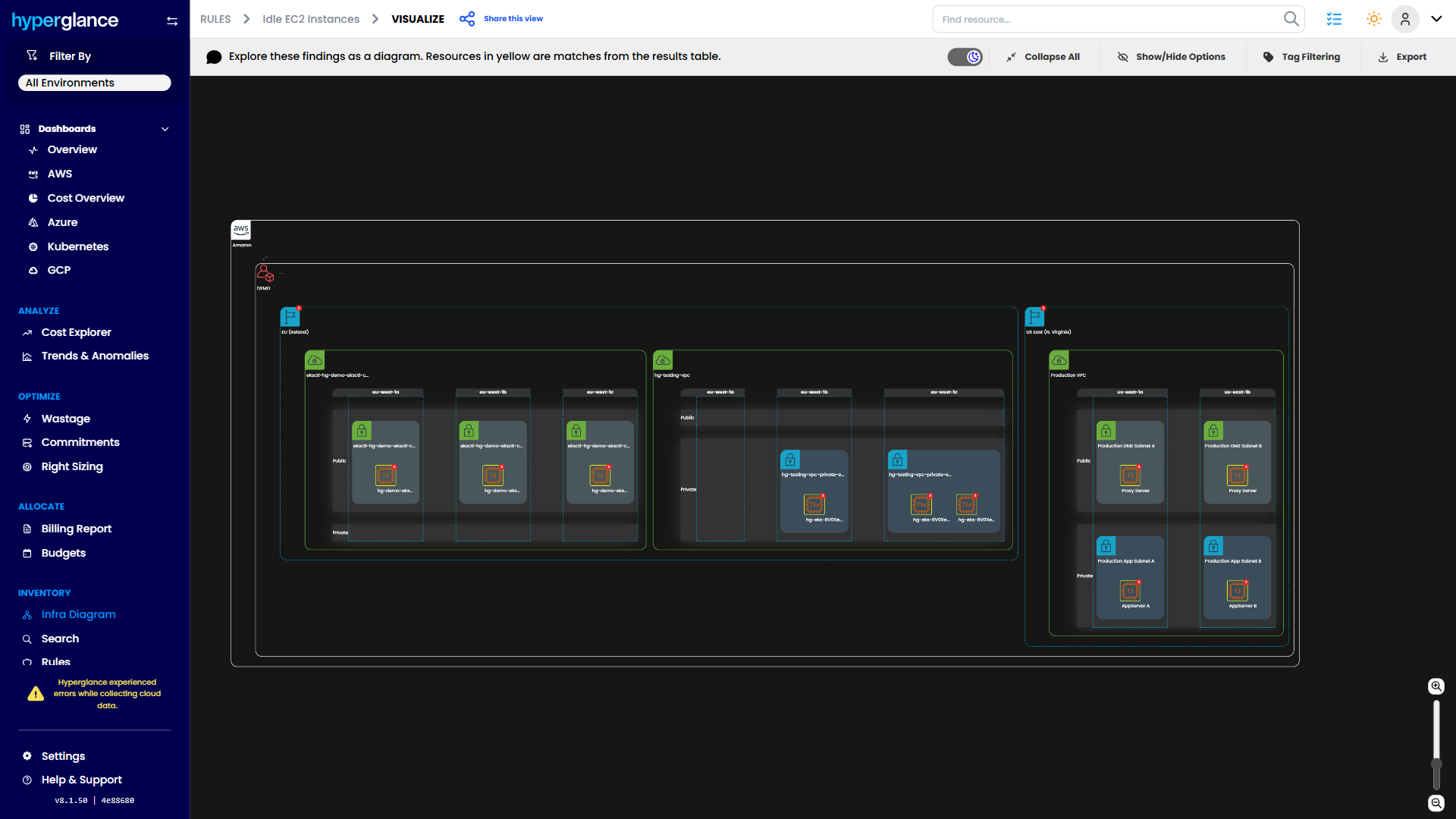
Hyperglance makes validation easier by showing relationships between instances, storage, networks, and applications in a single view. This answers the real FinOps question behind how to identify Idle EC2 Instances Safely: “Can I turn this off without consequences?”
Stop Or Terminate: Choose Wisely
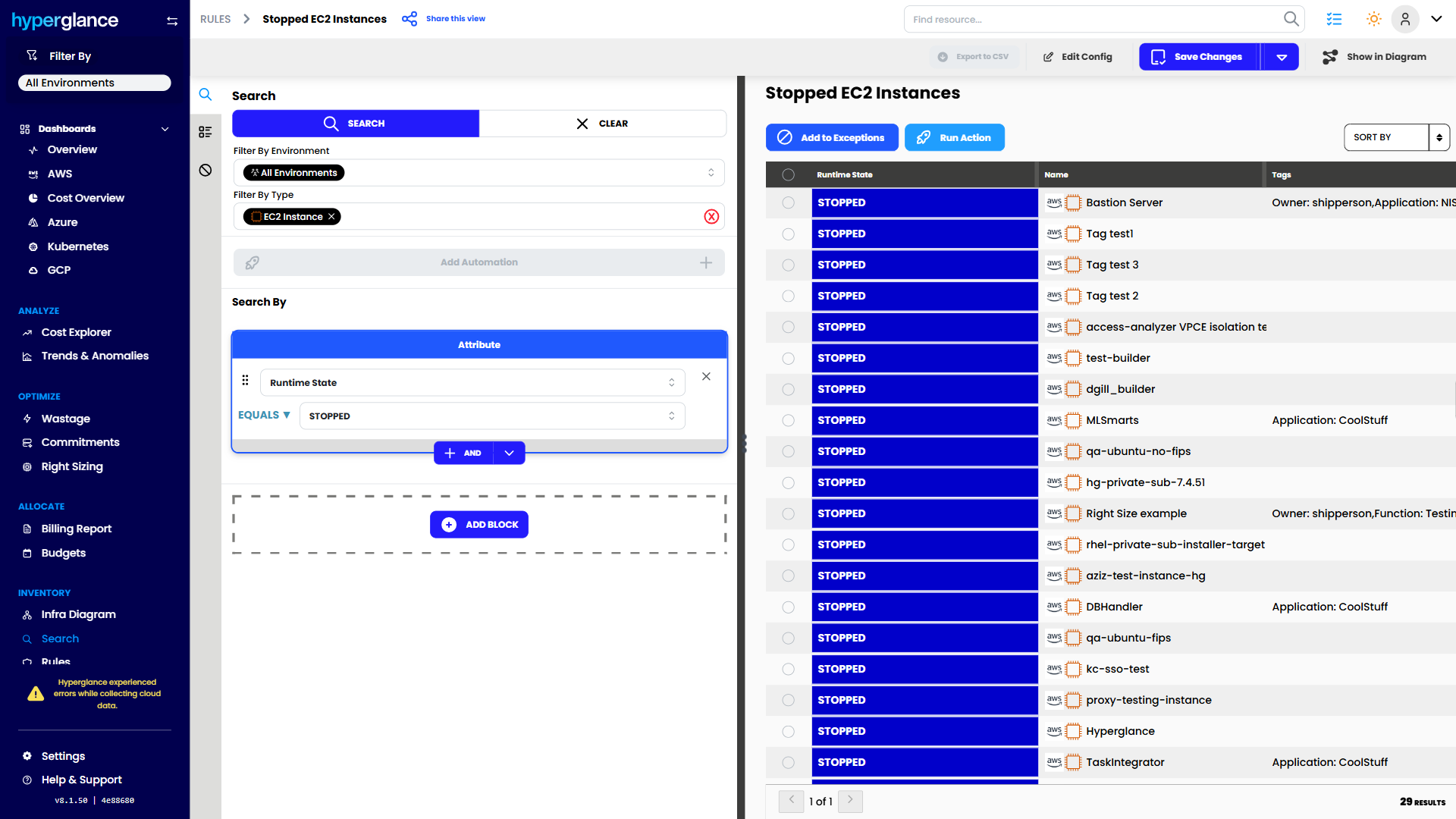
This is where choice matters.
Stop an instance when:
- You might need it again
- It holds important data
- You want to pause spending without deleting resources
Terminate an instance when:
- It’s definitely obsolete
- Backups already exist
- You want permanent cost reduction
Stopping removes compute costs, but attached EBS volumes still incur charges. Termination permanently deletes the instance and, by default, deletes the root volume unless configured otherwise.
Hyperglance gives you both actions directly from the same dashboard, no console switching required.
⭐ Want your EC2 strategy to line up with AWS best practice? Explore our breakdown of the AWS Well-Architected Framework.
Prevent Idle EC2 Instances From Coming Back
Cleanup is proper, but prevention makes savings stick. Common controls include:
- Scheduled shutdowns for dev and test environments
- Mandatory ownership tags
- Expiration dates for temporary workloads
- Instance size standards by environment
- Team-level budget alerts
AWS does not provide a native “idle timeout” for EC2. Prevention typically relies on CloudWatch alarms, automation, or scheduled policies. Many teams use sustained low CPU and network activity as a trigger for review or automated remediation.
The Manual Way (If You’re Not Using Hyperglance Yet)
You can identify idle EC2 instances using native AWS tools, but it takes more effort.
- CloudWatch: CPU and network metrics are available by default. OS-level memory and disk space require the CloudWatch Agent.
- Trusted Advisor: Can flag underutilized EC2 instances, but availability depends on your AWS Support plan.
- Cost Explorer: Helpful in understanding EC2 spend trends, not real-time utilization.
These tools work, but stitching the data together across accounts and validating risk is manual and time-consuming.
Clean up, Save money, Move on
If you remember one thing, make it this:
Idle EC2 Instances cost real money every hour they exist.
Whether you use Hyperglance or AWS directly, your FinOps goal is the same:
- Detect waste
- Validate impact
- Stop or terminate
- Prevent it from happening again
Start by creating visibility. Then operationalize cleanup. Over time, your cloud stops silently bleeding money. Done right, AWS EC2 Instances become an asset again, not an uncertainty.
🔍 Looking for better visibility into cloud costs? Explore powerful cost optimization solutions today.
Frequently Asked Questions
What is an idle EC2 instance?
An idle EC2 instance is running but not performing meaningful work. It usually shows very low CPU, memory, and network usage over an extended period.
How do I detect idle EC2 instances in AWS?
You can use CloudWatch metrics, Trusted Advisor, or a FinOps platform like Hyperglance to detect long-running, low-utilization instances across accounts.
What metrics should I monitor to identify idle instances?
Track CPU utilization, network throughput, disk I/O, and runtime duration. Low activity across all metrics for multiple weeks is a strong indicator of idleness.
Can I automatically stop idle EC2 instances?
Yes. You can automate shutdowns using Lambda, CloudWatch rules, or platform-based automation in your FinOps tools.
How to set up CloudWatch alarms to stop idle EC2 instances?
Create CPU and network alarms in CloudWatch and trigger a Lambda function that stops instances after a defined inactivity threshold.
What threshold for CPU utilization defines “idle” in EC2?
Many teams use an average utilization of under 40% over 2–4 weeks as a baseline. Combine that with low network traffic for better accuracy.
Is it safe to stop idle EC2 instances, or should I terminate them?
Stopping is safer when you need the instance again. Terminate only when it’s obsolete, and data is backed up.
Why Teams Choose Hyperglance
Hyperglance gives FinOps teams, architects, and engineers real-time visibility across AWS, Azure, and GCP — costs, security, and performance in one view.
Spot waste, fix issues automatically, and stay ahead of your spend with built-in FinOps intelligence and no-code automation.
- Visual clarity: Interactive diagrams show every relationship and cost driver.
- Actionable automation: Detect and fix cost and security issues automatically.
- Built for FinOps: Hundreds of optimization rules and analytics, out of the box.
- Multi-cloud ready: Unified visibility across AWS, Azure, and GCP.
Book a demo today, or find out how Hyperglance helps you cut waste and complexity.

About The Author: David Gill
As Hyperglance's Chief Technology Officer (CTO), David looks after product development & maintenance, providing strategic direction for all things tech. Having been at the core of the Hyperglance team for over 10 years, cloud optimization is at the heart of everything David does.