Contents
- Why Empty DynamoDB Tables Are Worth Cleaning Up
- The Safe Way To Delete A DynamoDB Table
- How Hyperglance Helps You Find Empty Tables Faster
- Step-By-Step: Cleaning Up DynamoDB Tables In Hyperglance
- How To Prevent Empty Tables From Piling Up Again
- The Manual Cleanup Options (When You Need Them)
- Time To Tidy Up Your DynamoDB Environment
- FAQs
If you’ve ever opened the DynamoDB console and thought, “Why do we still have all these tables?”, you’re not alone.
Knowing when to remove unused DynamoDB tables helps keep your AWS accounts cleaner, easier to review, and less risky to manage.
A table with zero items may be unused, but that alone doesn’t prove it’s safe to remove.
Empty tables often result from short-lived tests, proofs of concept, or old dev environments.
This walkthrough shows how to identify empty DynamoDB tables, check whether they’re safe to remove, and clean them up with less risk. We’ll also show how Hyperglance can speed up that process.
Why Empty DynamoDB Tables Are Worth Cleaning Up
Empty DynamoDB tables rarely cause incidents, which is why they stick around. But as accounts grow, forgotten tables:
- Clutter your AWS inventory
- Make audits and reviews harder
- Increase the risk of deleting the wrong thing later
A table showing zero items can be a strong signal that it’s no longer needed, but item count alone isn’t enough to delete it safely.
The Safe Way To Delete A DynamoDB Table
At a high level, you’re looking for tables that:
-
Have zero items
- Show no recent read or write activity
- Sit in dev, test, or sandbox accounts
- Are not referenced by active applications or automation
Doing this manually across dozens of tables doesn’t scale. This is where Hyperglance helps.
Before You Delete
Before deleting anything, do a quick check to reduce the chance of removing something still in use.
- Confirm the table belongs to a dev, test, or sandbox workload
- Check for recent reads and writes
- Confirm it is not managed by IaC or tied to an active app
- Review backups, PITR, streams, and global table setup
How Hyperglance Helps You Find Empty Tables Faster
Manually checking every table does not scale. This is where Hyperglance helps.
Hyperglance surfaces DynamoDB tables with zero items so your team can review them faster and decide what to remove.
Step-By-Step: Cleaning Up DynamoDB Tables In Hyperglance
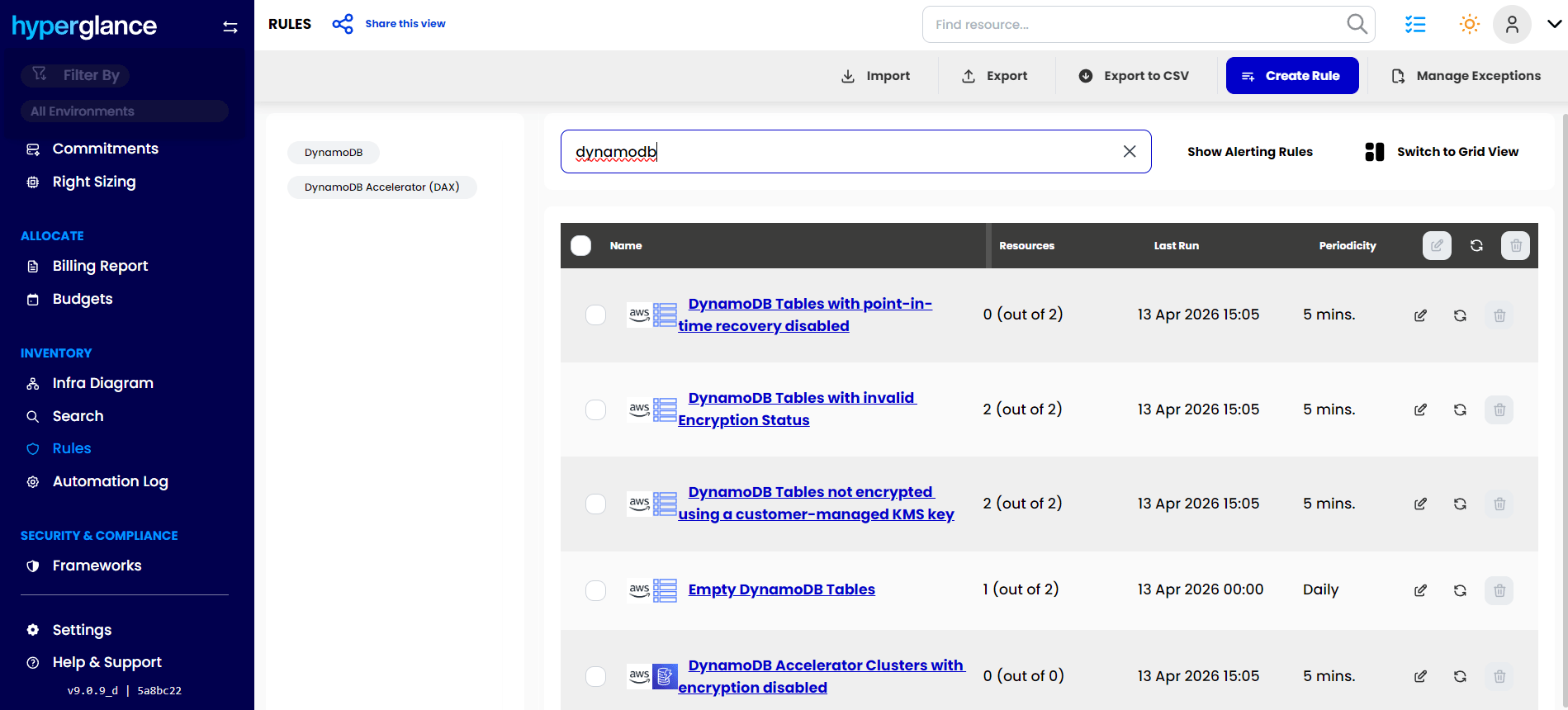
DynamoDB rules in Hyperglance
Find Tables That Need Review
Hyperglance detects tables with a DynamoDB item count of zero using its Empty DynamoDB Tables rule.
These tables are flagged for review, not deleted automatically, so you can validate them before taking action.
Validate Before You Take Action
Hyperglance helps you work through those checks faster by surfacing the table in context.
You can quickly review tags, naming, account placement, and related signals before deciding whether to delete the table. If there is any doubt, take an on-demand backup first.
This helps keep the cleanup lower risk, even in shared accounts.
Delete The Table
Once validated, you can trigger the Hyperglance Delete DynamoDB Table action through the Run Action button.
This gives teams a clearer, more controlled way to remove tables they no longer need.
How To Prevent Empty Tables From Piling Up Again
Cleanup is helpful, but prevention saves time.
A few practical habits:
- Enforce tagging for the owner and the environment
- Add cleanup reviews to sprint close-outs
- Set clear expectations for test resources
These habits make empty tables less likely to build up again.
The Manual Cleanup Options (When You Need Them)
For very small environments, AWS-native tools may be enough.
These options work in smaller environments, but they become harder to manage safely at scale.
1. Delete from the AWS Console
Open DynamoDB, select the table, choose Delete, and confirm.
If you are not fully sure the table is no longer needed, take a backup first and confirm ownership before deleting it.
2. Delete using the AWS CLI
aws dynamodb delete-table --table-name your-table-name
Deleting a table removes all data in it, deletes its indexes, and disables any associated stream. If you may need the data later, take a backup first.
Time To Tidy Up Your DynamoDB Environment
Empty tables don’t disappear on their own.
Whether you manage a single account or dozens, knowing when to remove unused DynamoDB tables helps keep your AWS environment clean, understandable, and cost-aware.
Hyperglance helps you find empty DynamoDB tables, review them in context, and remove them with less risk.
Want to see it in action? Start a Hyperglance free trial, or book a demo if you’d rather see it with one of our team.
FAQs
Why should I delete empty DynamoDB tables?
Empty tables add clutter, make reviews harder, and can make it tougher to see which resources still matter.
Does a zero item count mean a DynamoDB table is unused?
Not always. Zero items is a useful signal, but you should still check recent activity, ownership, and configuration before deleting anything.
What should I check before deleting a DynamoDB table?
Check for recent reads and writes, confirm the table is not tied to an active app or IaC workflow, and review backups, PITR, streams, and global table settings.
Can Hyperglance help with DynamoDB table cleanup?
Yes. Hyperglance helps you find tables with zero items, review them in context, and take action more efficiently.
Why Teams Choose Hyperglance in 2026
Hyperglance is a strong fit when cost data alone doesn’t give your team enough context.
That often happens when teams are asking questions like:
- What is running across our cloud estate?
- Who owns this resource?
- Why did this cost change?
- What else depends on it?
- Is this safe to clean up?
- Which policy, security, or compliance issue needs attention?
- Can we route this to the right owner or trigger an approved action?
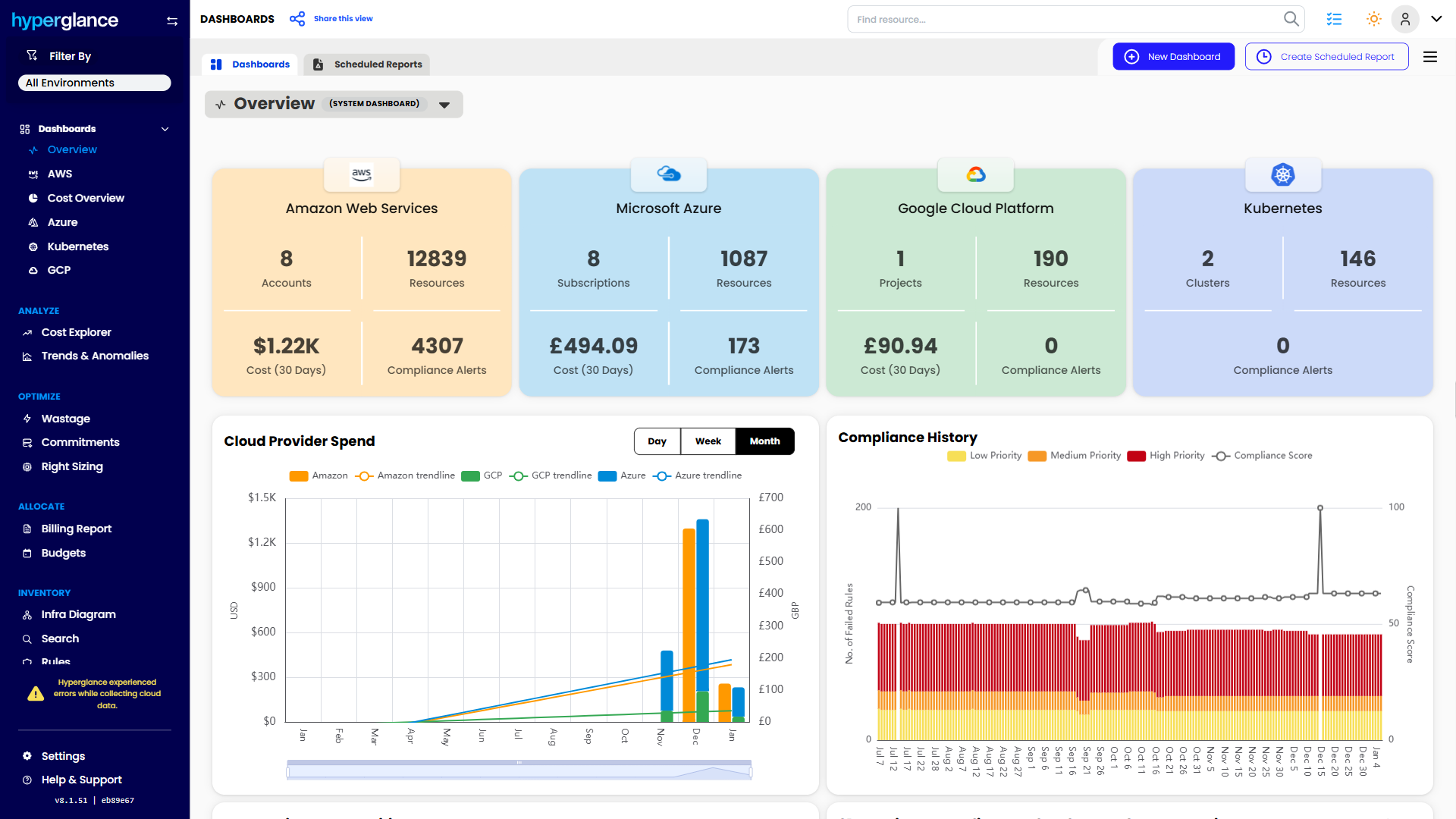
We help teams connect cloud cost to infrastructure context across AWS, Azure, Google Cloud, and Kubernetes. That means FinOps, CloudOps, platform, security, and leadership teams can work from the same view.
Hyperglance is especially useful for mid-market, enterprise, MSP, public sector, and regulated teams where ownership, governance, automation, and data control matter.
What You Can Do With Hyperglance
- See cost, resources, relationships, and ownership in one place
- Visualize cloud architecture with interactive diagrams
- Find waste, policy issues, and cost anomalies faster
- Route findings to the right team through existing workflows
- Use no-code automation for approved fixes
- Run Hyperglance in your own environment when data control matters
Want to see where Hyperglance fits in your FinOps stack?
Explore the product, start a free trial, or book a demo with the team.

About The Author: David Gill
As Hyperglance's Chief Technology Officer (CTO), David looks after product development & maintenance, providing strategic direction for all things tech. Having been at the core of the Hyperglance team for over 10 years, cloud optimization is at the heart of everything David does.